In order to view this webpage as you currently are, you’re using a program installed on your computer called a “Web Browser”, e.g. Google Chrome. Or to phrase it another way, you need to use a web browser like Google Chrome in order to view webpages. There are some important aspects of how Google Chrome works that will be essential to managing and changing your website.
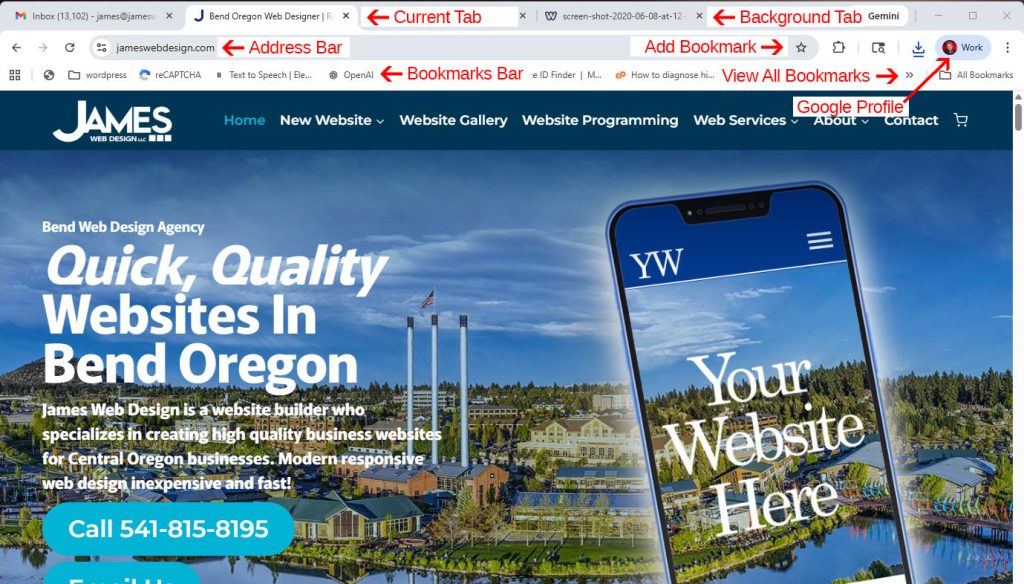
- Address Bar
The address bar is where you can find your current URL or website address. You can also type in a different website address and hit ENTER to visit that website. This is useful for us if your website is not yet “live” on Google - Bookmarks Bar
Bookmarks are saved website addresses (like speed dial on old phones). You’ll want to bookmark your website, your website dashboard, your Gmail website, and so on, so you can easily get to those sites later. - Bookmark a Webpage
To bookmark a webpage, simply click the Star icon to the right of the address bar. It will generally add it automatically to the “bookmarks bar” - Bookmarks Bar
The bookmarks bar is a horizontal bar just beneath the address bar that contains buttons that are your saved websites or bookmarks - Current Tab
Most users appreciate the ability to view more than one website at a time, and to easily switch between then using what looks like File Folder Tabs at the top of the screen